Find the registration options
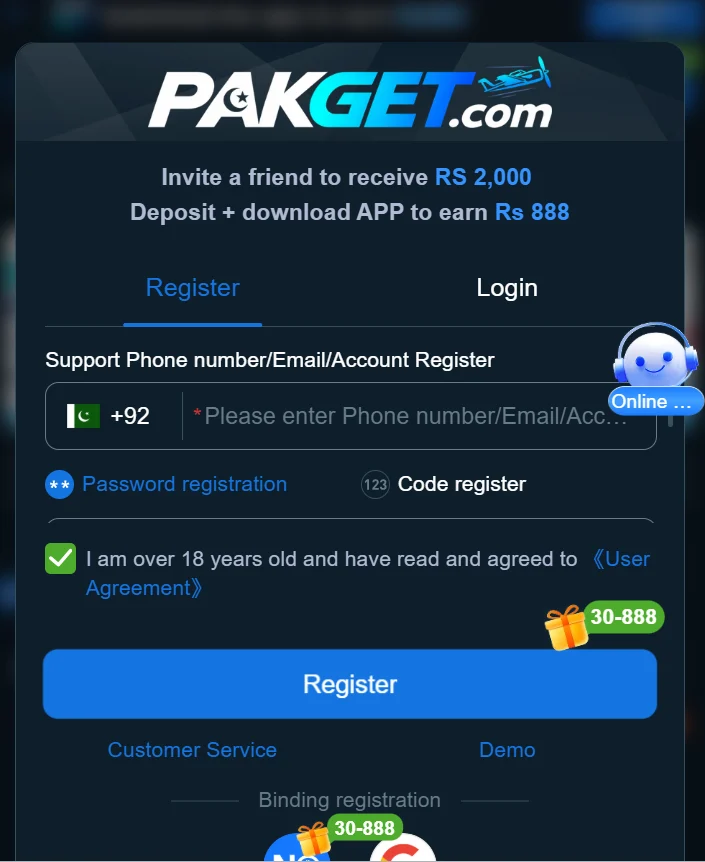
The Pak Get Game account window in the supplied screenshot opens with Register selected and Login beside it. Below those tabs is a single identifier field and a choice between Password registration and Code register. The lower section includes an age and agreement statement, a Register button, Customer Service and Demo. Taking a moment to identify these controls makes the screen easier to use on a small phone.
Begin by deciding whether you already have an account. People sometimes arrive through an invitation that opens the registration tab automatically, even though they registered earlier. If you recognise your existing details, select Login. Otherwise, review the registration requirements displayed by the operator. This information page describes the pictured controls and gives you room to compare your options before submitting any personal details.
Read the agreement before you enter details
The pictured checkbox states that the person registering is over 18 and has read and agreed to the User Agreement. Open the agreement and read the current eligibility, account and payment conditions before using the box. Check the wording that applies to your own circumstances, including any location restrictions. An app appearing in search results or opening on your device does not by itself establish that you are eligible.
If any part of the agreement is unclear, pause at this stage. Look for the operator’s contact details inside the service and ask about the specific clause. Keep a copy of the version or date you read, particularly if you intend to use payment features later. An invitation from someone you know is still a reason to read the terms yourself, since the account would be in your name.
Decide which identifier to use
The field label mentions a phone number, email or account. Choose a supported option you control and expect to keep. A personal email address you check regularly may be more practical than a temporary workplace address. A phone number linked to a SIM you plan to replace can create a recovery problem later. Check what the chosen registration method asks you to verify before entering the rest of the form.
The screenshot shows +92 beside the phone field. Compare the format requested by the live form with the way your number is saved in your contacts. For an email address, read the characters back from the screen after typing. A keyboard can suggest an old address with a similar spelling. If an account name is available, write down its exact spelling for future login attempts.
Compare password and code registration
Password registration is selected in the pictured window, with Code register shown as another option. Switching modes may change the instructions or fields underneath. Read the new labels after switching and confirm the large submission button still says Register. The screenshot stops partway through the form, so use the actual instructions on your device to determine which additional details the chosen method requires.
If you choose a password, create one you use only for this account and save it in your own password manager. If a code is required, check where the form says it will send the message. A message saying that you are approving a wallet transfer describes a different action. Stop there and revisit the registration screen if the purpose in the message differs from the action you intended.
Understand the promotional text above the form
The example screen advertises an invitation payment and an offer tied to an app download and deposit. Those figures appear in the promotional area above Register and Login. They describe the wording visible in that particular screenshot. You would need the current offer terms to know who qualifies, whether a credit can be withdrawn and whether any minimum activity applies. Registration itself gives no assurance of a payment.
Consider a reader who follows an invitation because a friend mentioned a bonus. Before acting on the offer, that reader could check its expiry date, whether new accounts qualify and where any resulting credit would appear. If those details are missing, leave the promotion out of the decision to open an account. A deposit or a referral should be a separate choice made after understanding the amounts and conditions involved.
Check the last screen before submitting
Review the identifier, registration method and eligibility statement together. If your browser filled in fields automatically, check that they belong to you. On a shared household phone, a saved password entry may insert another person’s account details. If a referral field appears on the current form, read its label and check whether it is optional. The screenshot alone does not establish that a referral is required.
Submit once and allow time for the response. Read the text displayed below the fields or on the following screen before taking another action. If you see a message saying that the identifier is already registered, keep that exact wording. It may be a cue to recover an existing account. Changing a digit or borrowing someone else’s phone number makes it harder to keep control of the account afterwards.
Confirm what the registration actually created
Once the service displays a confirmation, record the date, identifier type and account name in a private place. Return to the operator’s lobby or profile to confirm the details displayed there. The supplied lobby image includes a Profile shortcut in the lower navigation. It also shows an account balance, but a balance label tells you nothing about whether a particular promotion has been approved or an identity check completed.
Save the route you used to enter the account, and review how to sign in again while the original registration details are easy to recall. For example, a person who chose email registration should know which inbox contains the confirmation and which saved password entry belongs to PakGet Game. Clear identification now can save time if you switch phones, update software or need to discuss an account problem later.
Handle an interrupted registration
An interrupted form can leave you unsure whether the submission reached the operator. Look for a confirmation in the communication channel associated with the original attempt. Record the last screen you saw and whether the Register button had already been pressed. If the next attempt reports an existing account, use the service’s login or recovery route to investigate that account before submitting a second registration.
Suppose the browser closed just after you pressed Register, and your next visit opens the same empty form. The empty fields only tell you that the browser has opened a fresh window. Check for a confirmation, then test the original sign-in method if you have one. If you contact support, describe the interruption and the time it happened. Share the minimum details needed to locate the attempt.
Keep account setup separate from money decisions
After registration, take time to explore how the lobby labels Home, Promo, Deposit, Support and Profile. Look for transaction history and the terms governing each payment feature before committing funds. Someone interested only in seeing the layout can review the screenshots here or read about the Demo option visible on the registration window. Its availability and what it includes depend on the live service.
If you decide to use the account, choose a time boundary and a spending limit you can afford before opening a game. Read the Deposit page to understand the fields visible in the payment screenshot and the Withdraw page to see how the separate withdrawal password is presented. The Responsible Gaming page covers practical ways to pause or step away when time, spending or pressure to recover a loss starts to affect your decisions.