Opening your existing Pak Get account
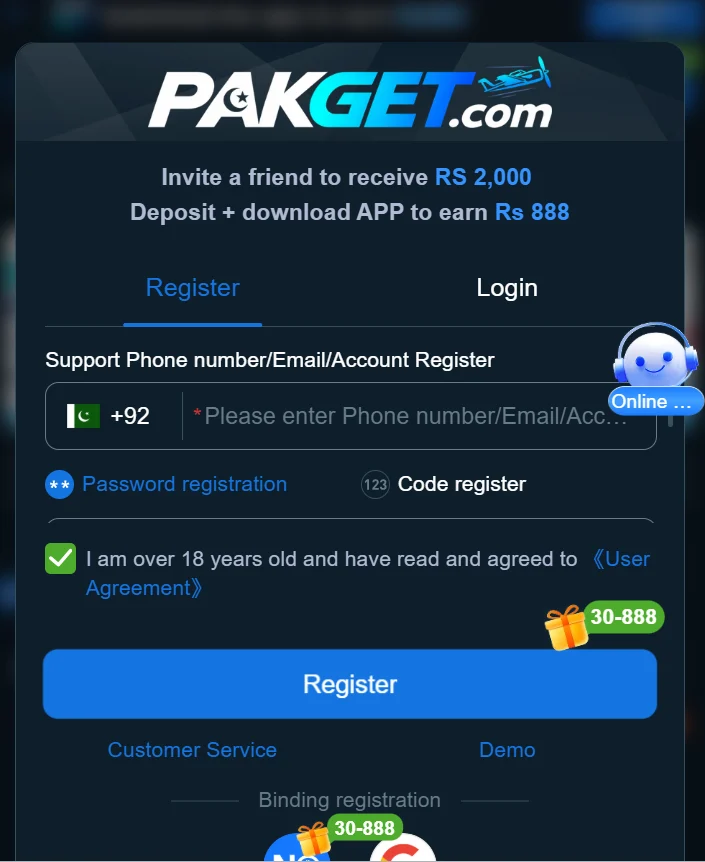
The account window in the Pak Get Game screenshot has two tabs. Register is highlighted in blue, while Login sits to its right. If you already have an account, select Login before entering anything. The large blue button at the bottom of the pictured screen still says Register. That label is a useful clue when a link opens the account window on the wrong tab.
This page explains how to recognise the account screen and work through the common decisions involved in returning to it. Your phone number, email address, password and codes belong in the operator’s account interface. You can read this page without providing any of them. Keep it open in a separate browser tab if you want to compare the instructions with the screen on your phone.
Choose the identifier you originally used
Think back to the first confirmation you received when you created the account. Did you use a phone number, type an email address or choose an account name? Check a saved account entry or your original registration record if you are unsure. The registration screenshot mentions all three types of identifier. Look at the label on the live login screen to see which types it accepts today.
Suppose you registered using an email address but later added a phone number to your profile. Start with the email address you originally used unless your account records confirm you changed the login identifier. A number used for wallet receipts may belong to a different part of the service. Trying several possibilities at once makes it harder to tell whether you have mistyped a password or selected the wrong account.
Read the phone and email fields carefully
The registration image shows a Pakistan flag and a separate +92 prefix. If the login form has a similar layout, check its example before entering your number. When pasting an internationally formatted number, look at the complete result to see whether the country code appears twice. A phone keyboard may also insert spaces between groups of digits. Follow the format requested on your screen.
For an email login, check the full address after selecting a keyboard suggestion. Two personal addresses can look almost identical when the field is narrow. Scroll to the end and examine the domain as well as the name. If your account uses a username, enter the exact username you saved at registration. A nickname shown publicly or a name used in a payment receipt may be different.
Signing in on another Android phone
Open the PakGet account interface through a destination you already use and recognise. When a link opens inside a messaging or social app, inspect the address before using a saved sign-in entry. If the small embedded window hides that information, open your usual browser and navigate from your own bookmark. Let the login screen finish loading before choosing a saved account.
On a borrowed phone, decide first whether you need to open an account containing payment activity there. If you go ahead, decline invitations to save your password or enable an automatic sign-in. When you finish, use the account’s sign-out control, close the account tab and return the phone. Closing a tab alone can leave the browser signed in when the same page is opened again.
When the login screen asks for a code
Read the message that describes the code’s purpose. A message about setting up a new account or approving a payment is a reason to stop and check which screen is open. Enter a code only in the session where you requested it. If the interface shows part of a destination phone number or email address, compare the visible characters with your own before waiting for delivery.
If a message seems late, check the inbox attached to that particular account and read any expiry or resend instructions on the screen. Multiple requests can leave several similar messages in the same conversation. Use the code associated with the current request and keep the message private. Someone who contacts you through a comment, a private chat or a forwarded support link has no need to receive your login code.
If the password is rejected
Read the exact error once, then check the account identifier, keyboard language and capitalisation. A saved password may belong to an older account on the same device. A pasted password can also include an extra space. If your screen offers a password visibility control, you can briefly inspect what you typed in private. Switch the field back to hidden before anyone else can see it.
After checking your entry, use the recovery option shown by the operator if one is available. Follow the recovery instructions for the original identifier. Creating a second Pak Get account to get around a failed login can complicate a later enquiry about transactions on the first account. If you no longer control the original inbox or number, explain that specific issue through the operator’s documented support route.
When the app returns to the same screen
Watch what happens immediately after you submit the form. A message underneath an empty field points to missing information. A spinner that keeps moving could reflect a connection problem. A return to Register may mean that a fresh account window opened. These observations describe different situations, so record the sequence before making another attempt. Start with the simplest check that fits what you saw.
For example, if the page was left open overnight, open the login screen again from your trusted entry point and enter your details in the new session. If other pages are also failing to load, check your connection first. Save any relevant transaction reference before clearing app storage or reinstalling software. Those steps can remove local information that would otherwise help explain what happened.
Check the profile after signing in
A successful sign-in should take you into the account you intended to use. The supplied lobby image shows a Profile tab, an account balance area and a Support shortcut. Compare the visible account details with your own records before touching Deposit or opening a withdrawal request. A balance of zero on its own tells you very little about whose account is open.
If you see unfamiliar details on a shared device, sign out and review the saved account selected by the browser. If your own details are present but a transaction appears to be missing, keep the payment enquiry separate from the login issue. Note the time, payment amount and transaction reference for the operator’s private support channel. Leave passwords and wallet approval codes out of that description.
Prepare a useful support request
A short account of one failed attempt is easier to investigate than a long list of guesses. Include the date, local time, device type, whether you used the browser or app, which identifier type you selected and the exact error text. For example, you might report that selecting Login and submitting an email address returned you to the same tab without showing an error.
If you include a screenshot, crop away balances, full phone numbers, email addresses, account identifiers and any private payment details. Keep your original copy for your own records. Before contacting anyone, check that you reached the support option through the same operator interface you intended to use. You can also revisit the Register page here to compare the two tabs or the Withdraw page for questions specifically about the separate withdrawal password.
When support replies, keep the exchange in the original conversation. Record any reference number they provide so a follow-up can identify the same incident without requiring you to share your personal details again.