Inside the Pak Get Game lobby
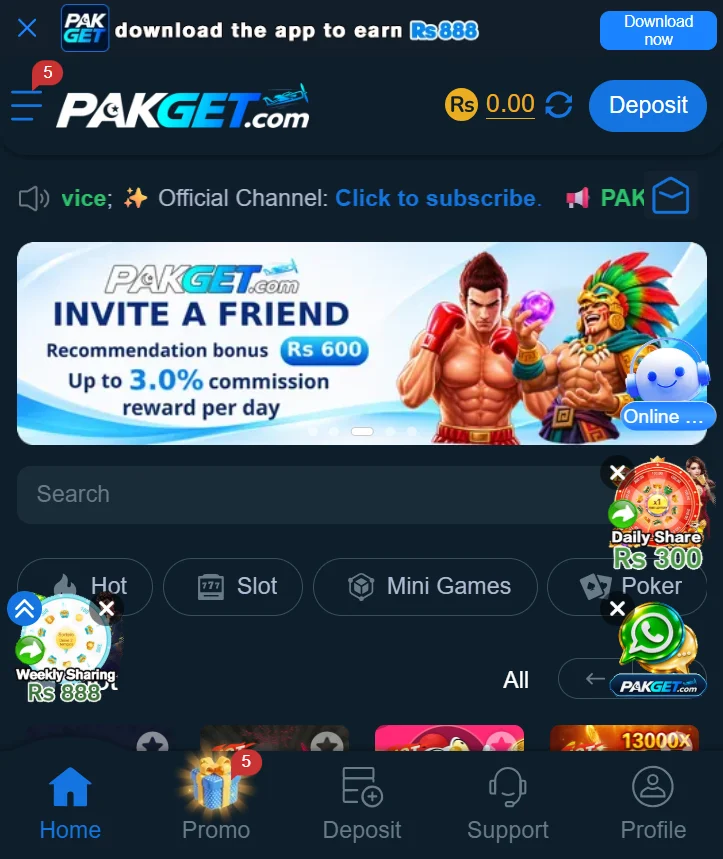
The first thing you see in Pak Get Game is a lobby built around quick choices. A blue Deposit button sits beside the balance, a search box takes up the middle of the screen, and the bottom bar holds Home, Promo, Deposit, Support and Profile. Knowing where these controls lead is useful even if you only want to look around before deciding whether to download the Android app.
The name appears in a few forms. The artwork uses PAKGET as a single word, while visitors often type Pak Get, PakGet Game or Pak Get Game. Throughout these pages, the names refer to the interface shown in the screenshot gallery. The lettering can help you recognise a screen, but a matching logo alone tells you little about who published a particular file. The Download page brings together the details to check when you have an Android installation package in front of you.
Find your way around the home screen
Start with the row immediately below the promotional banner. The search field sits above category buttons labelled Hot, Slot, Mini Games and Poker. Think of these as two different ways into the catalogue. Search is useful if you already have a title in mind. A category is a better starting point if you want to see the kinds of games the lobby groups together. Availability can change, so use the titles actually visible in your session.
Several small graphics overlap the lobby in the supplied picture. An online assistance icon appears on the right, and sharing offers occupy both sides near the category row. On a small phone it can be easy to tap one of those instead of a category. Look at the label that opens before continuing. If you expected the game list and landed on an invitation or payment screen, go back to Home and choose the category again. Exploring the catalogue and accepting an offer are separate decisions.
One useful landmark is the bottom navigation bar. On the lobby image Home is highlighted in blue and Profile sits at the opposite end. On the wallet images the bar gives way to a page title and a back control at the top left. If the familiar row disappears, check the title before tapping the largest blue button. It may confirm an action on the new page.
Choosing the Android download
The homepage title identifies the requested Android edition as v1.0. An Android package has its own version information, however, and a version number in a webpage title cannot confirm the contents of a file. Open the Download page for the current download status before trying to install anything. If a package is available, take a moment to look at its source, size and release details while the original listing is still open.
The lobby screenshot shows a short download banner across the top with a reward amount next to the app name. That banner is part of the pictured interface. An image of a download button cannot deliver an APK, confirm a promotion is active, or tell you which Android versions are supported. Use a download control whose destination you can inspect. If it leads to a registration page, decide whether you want an account before entering your details. Opening a website, registering with an operator and installing software on your phone are three distinct steps.
Understand what “earning app” means here
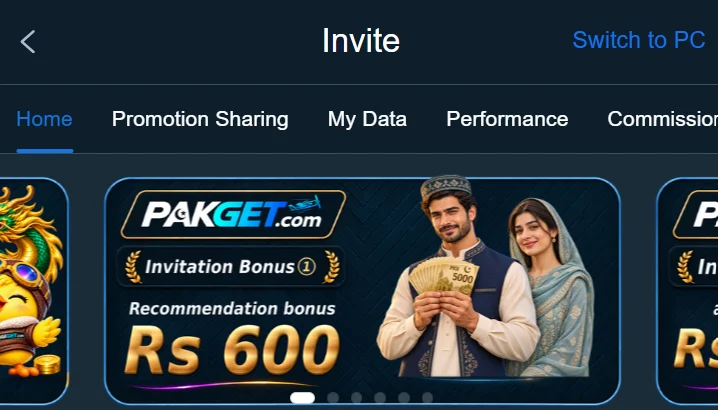
Pak Get uses reward language in several places. The lobby banner mentions a download offer, the invitation panel shows a recommendation bonus, and the deposit screen displays extra amounts beneath preset buttons. These figures describe different actions. A number beside a banner does not establish an amount you can immediately withdraw. The withdrawal screen shown here is a password setup screen and contains no evidence of a completed payout.
For example, imagine seeing a rupee amount on the registration banner and another amount on an invitation card. Adding the two together would assume one account qualifies for both, that both offers are current, and that each amount becomes withdrawable cash. The screenshots establish none of those things. Before assigning a value to an offer, find its eligibility rules, any expiry, and the conditions for using or withdrawing the credit. If those details are missing, leaving the offer out of your decision gives you a clearer picture of what you are actually spending.
Registering and returning to an account
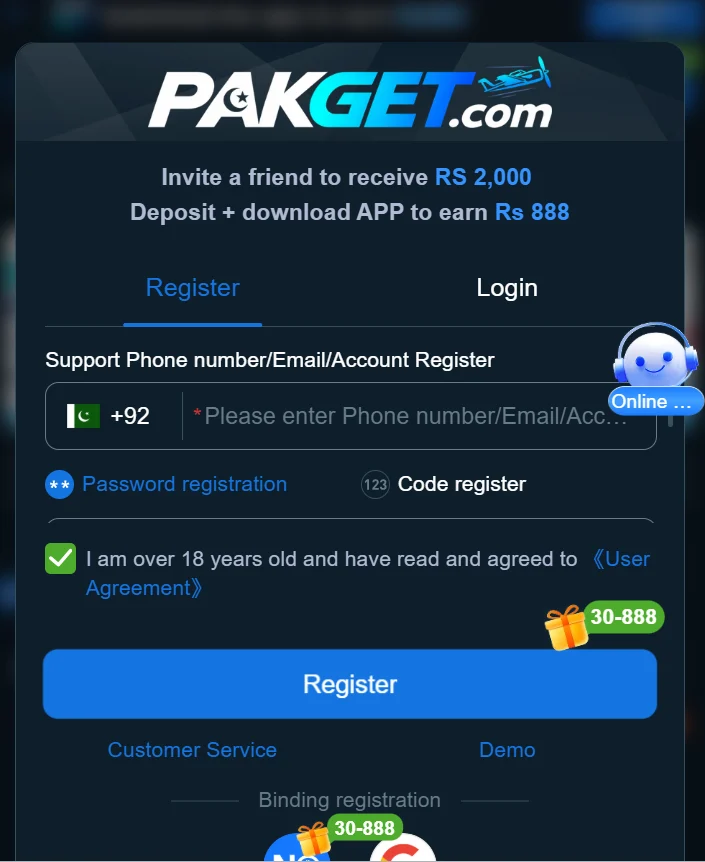
The account panel has Register and Login tabs side by side. Register is highlighted in the screenshot. Its first field displays a Pakistan flag and the +92 country code, and the accompanying text refers to a phone number, email or account identifier. Password registration and code registration appear as separate choices. Check the selected mode before filling anything in, especially if your phone has already suggested a number or email from a different service.
The same panel includes an age declaration, a link to the user agreement and a Demo option. Read the agreement before accepting it yourself. If you are returning after installing the app on another phone, switch to Login before proceeding. Trying to create a second profile when your goal is reaching an existing balance can make recovery more confusing. The Register page explains the choices visible when setting up an account, while the Login page covers returning to the same account and working through an unfamiliar sign-in screen.
Reading the rupee balance and deposit screen
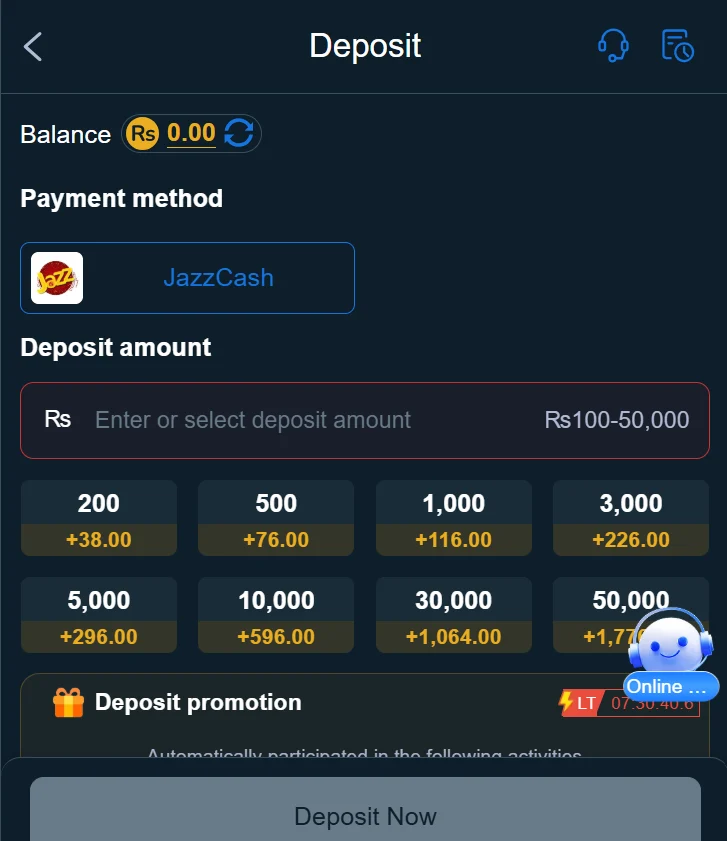
The deposit picture gives a concrete example of the wallet layout. It shows a balance of Rs 0.00, a refresh icon, JazzCash under Payment method and an empty amount field. The field displays a range of Rs 100 to Rs 50,000. Below it are preset choices such as 200, 500 and 1,000. Those values describe the captured screen. Check the range, available methods and any charges displayed for your own account before starting a payment.
Look closely at the two lines in each preset. The larger figure is the amount selected. The smaller, highlighted figure is presented as an extra. A 500 tile with a separate figure underneath should prompt you to check how much will leave your wallet and where the additional amount would appear. The screenshot also shows a deposit promotion area below the tiles. Read that area before confirming. If the final payment screen differs from the amount or recipient you expected, leave it and review the transaction details from the beginning.
A withdrawal screen can mean several things
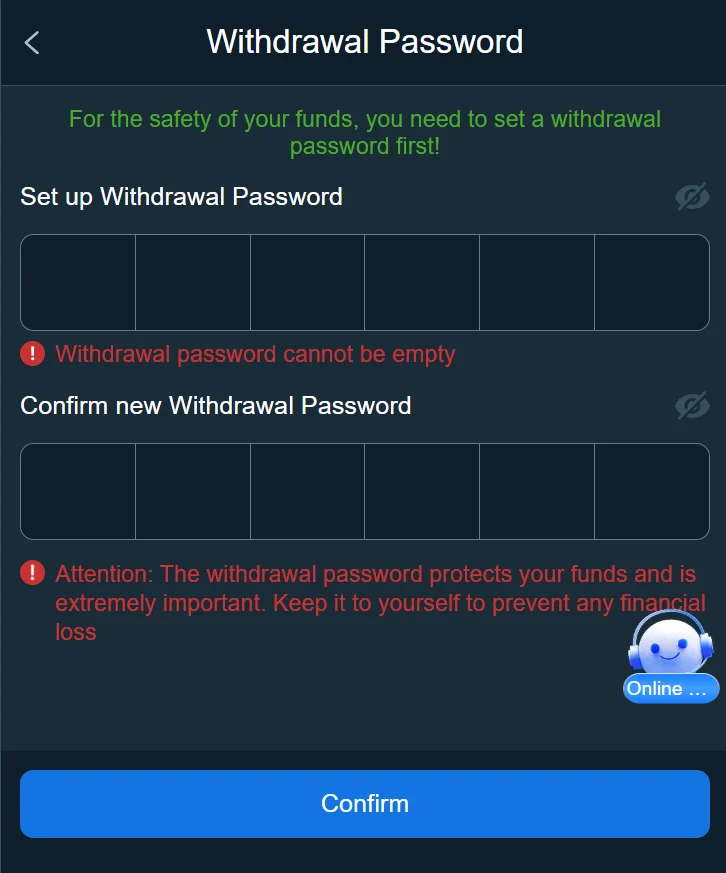
The supplied Withdraw image is headed Withdrawal Password. It asks for a new credential, then asks you to repeat it. Each row contains six boxes and has an eye icon nearby. The red message under the first row indicates that the entry is empty. There is no destination wallet, payout amount, transaction reference or completed status anywhere on that screen. Confirming the two entries would concern the credential shown there. It would not by itself establish that a transfer had taken place.
This matters when reading messages about a withdrawal. If you write to support that a transfer is missing, tell them which screen you reached. Setting up the password, submitting a request and finding a completed transaction in a receiving wallet are different events. A useful description might say you reached the confirmation field and then returned to the lobby without seeing a transaction reference. It gives support a starting point without exposing the password. The Withdraw page explains how to keep these stages straight when reviewing your own records.
Promotions, invitations and the figures on a card
The invitation view has its own navigation. Home, Promotion Sharing, My Data and Performance appear together across the top. The sample card shows a recommendation bonus, followed by a separate panel containing a count and settlement date. Farther down, claimed, unclaimed and total commission each have their own labels. That separation is worth paying attention to. A banner can display a headline amount on a screen where the account figures below still show zero.
The captured lobby and registration panel also promote inviting a friend, but the amounts on their banners differ. You cannot infer from this which terms apply to a new invitation today. Open the rules attached to the specific offer you are considering and look for the action that qualifies, who is eligible and when credit would appear. If you share an invitation, describe it as an invitation. Avoid promising someone a return based on the largest figure you saw in a rotating graphic or a count that belongs to another account.
What to keep when something goes wrong
A useful support record is short enough to read and precise enough to match an event. Write down which PakGet screen you used, the approximate time, the amount if one was involved and the status visible when you left. When a payment is involved, keep your wallet receipt separately. Crop screenshots so that support can see the relevant message without receiving a full page of personal details. A password, recovery code or wallet PIN has no place in a support screenshot.
Consider two situations that can look identical from the lobby. In one, you opened Deposit, selected a preset, and backed out before confirming anything. In the other, the wallet issued a receipt but the lobby still shows its earlier balance. Recording the last completed step helps distinguish them. For the second situation, review the receipt and transaction history before submitting another payment. A record can help explain a discrepancy. It cannot turn an advertised reward into a confirmed balance or set a deadline for the operator to respond.
Set a limit before opening a game
The screen design gives promotions, the balance and account actions similar prominence. It helps to decide why you are opening Pak Get Game before a banner makes the next choice for you. Looking for a download, browsing a category or checking an existing transaction can each be a complete visit. If you intended to confirm a receipt, you can do exactly that and leave without exploring the new offers on the same screen.
If you choose to play with money, pick an amount you can afford to lose and a stopping time before you open the lobby. Treat both as limits that stay in place after a disappointing result. A timer outside the app can remind you of your original plan even if the phone stays on the same game. If a bonus requires spending above your limit, skipping the bonus keeps your earlier decision intact. The Responsible Gaming page gives more detail on breaks, recording spending and recognising when you would prefer to step away altogether.
Common questions before opening PakGet
Can you tell from these pictures whether an Android download has finished? Look at what the page actually shows. The lobby contains an invitation to download. The gallery does not include an Android download notification, a completed installation screen or a device settings page showing an installed version. To establish what happened on your phone, check your own downloads and installed apps. Seeing the lobby in a browser alone does not answer the question.
Is the amount on the invitation page the same as the balance next to Deposit? The screenshots place those numbers in different contexts. One sits inside promotional artwork or a commission summary, while the other is labelled as a balance with a refresh control. When asking about a figure, include its on-screen label and the page where it appeared. For a download question, start with Download. For a payment question, choose Deposit or Withdraw according to the direction of the money. That simple distinction saves retracing several unrelated screens.
How to use the Pak Get Game pages
A first visit might start on Download, continue to Register only if you decide to open an account, and end after you have reviewed the account choices. On a later visit, Login takes you straight to the information for an existing account. If you are checking a payment, the relevant wallet page explains the labels you are likely to encounter and the information worth keeping. Every topic has its own page so you can return directly to the one you need.
The screenshots are especially helpful when read in sequence. First identify the page title, then look at the selected tab, and only then interpret a number or a button. That order helps distinguish a registration offer from a balance, a password setup prompt from a payout request, and a promotional image from a working download. When the live screen differs from a picture here, use the current screen and its terms to decide what you are being asked to do. You can always leave a step unfinished while you check.