Android download
Download for AndroidListed version: 1.0 · Android · Adults 18+
The Android download
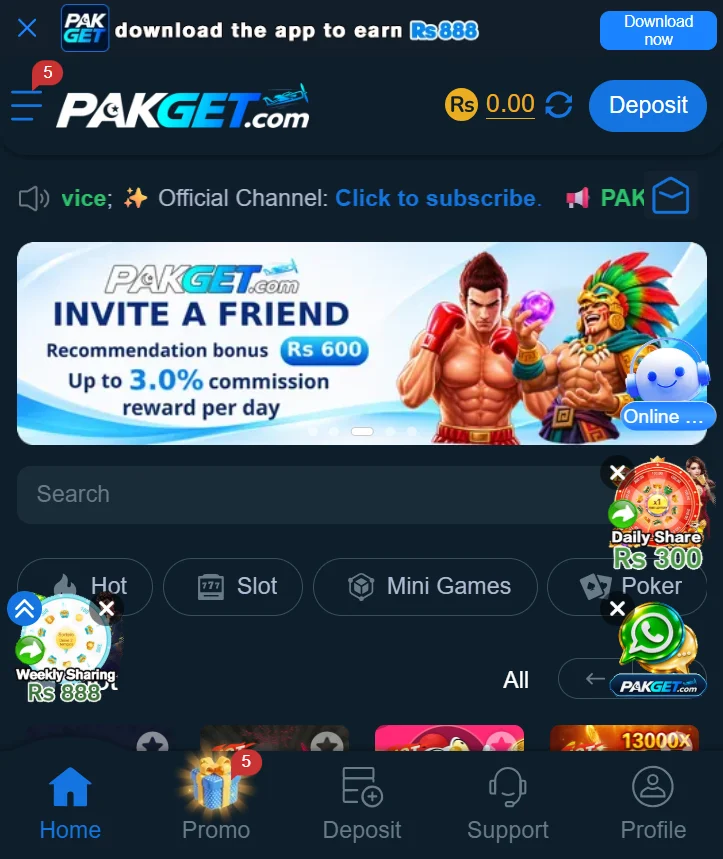
Pak Get Game is advertised for Android in the blue download banner above the lobby. This page brings together the release details you can check before putting an app on your phone. The name v1.0 identifies the edition described in this listing. The materials available here contain pictures of the interface, including the lobby, wallet and registration screen. A picture cannot establish the version installed on the device that captured it. A package name, release date, minimum Android version and file size all require a release record from the publisher.
The download status near the top of this page tells you whether a destination is available. If it shows that the link is pending, you can explore the screenshots now and come back another time. There is no reason to register or pay for a release that you cannot inspect. Someone offering to unlock a file through chat is asking you to start a separate transaction with them.
What a download button should tell you
Three different actions can look similar on a phone. A button can open a store listing, open a publisher's website, or start saving a file. On a store listing, read the developer name and the app description before tapping install. On a publisher page, read the address and look for a release section explaining what is being distributed. When a browser offers a file, check what it is asking to save and which website initiated the request.
In the PakGet lobby screenshot, Download now sits above a separate Deposit button. The text near the first button mentions a promotional amount. It does not explain the file's compatibility, its publisher, or the terms for receiving that amount. Keep those questions separate: downloading the software, opening a game account and choosing whether to make a payment are three decisions you can make at different times.
Check the file source
A search for Pak Get may return pages using several variations of the name. The same logo can appear on a review, a copy of an old page, or an advertisement. Start with a publisher address you can confirm independently and compare the destination with that address. A bookmark made when you established the source is useful on return visits. If the address changes, take a moment to establish who announced the change and where.
Suppose a referral message and a download listing offer files with the same name. The matching name tells you little about what is inside either file. Compare the developer identity and any release details supplied through the publisher's established channel. If the origin remains unclear, leave both files unopened. The screenshots on this page are available to view without installing software, so you can examine the layout while deciding.
Prepare your Android phone
Use Settings to look up your Android version and available storage. Those are the two numbers worth having ready when a publisher provides system requirements. Room for the downloaded file alone may be insufficient for the installed app and its working data. Avoid deleting important photos or documents on the strength of an estimated size from an unrelated listing. Find out what space the actual release requires first.
If several people share your device, choose a time when you can read the prompts yourself. Use a device you control and a connection you trust. A work or school phone may have installation rules set by its administrator. Respect those controls and keep wallet activity off managed devices where personal use is restricted. A second phone with an unknown owner or outdated software introduces more uncertainty than it solves.
Understand Android's installation prompts
Google recommends getting Android apps from Google Play and explains that packages from outside the store can introduce risks to your device and data. Android may show a separate prompt when a browser or file manager tries to install a downloaded app. Read the prompt in full. If you did not intentionally start an installation from the source shown there, cancel it and check your browser's downloads list.
Keep Google Play Protect enabled. If Android warns about an app, pause and read the warning before taking another action. Check whether the publisher provides a current release and whether its distribution details match the file you obtained. A message from a seller asking you to turn off protection to claim an installation reward is a good reason to leave the file alone. A reward banner cannot answer the phone's security question.
Review the first launch
After installing a release you have verified, open its app information and look over the permissions. Android lets you review and change permissions in Settings. Consider what you were trying to do when a request appeared. A prompt for contacts while you are simply looking at a lobby deserves an explanation. If you decline a request, observe which feature is affected before deciding whether access is useful to you.
Look for the labels visible in the PakGet Game screenshots: Home, Promo, Deposit, Support and Profile. Layouts can change between releases, so a difference in colours or tab positions alone tells you little. A demand for another person's wallet PIN, a verification code in chat or access to control your phone raises a much more practical concern. Close the request and use a support route you can identify independently.
When the download stalls
Open the browser's downloads list before tapping the download button a second time. An entry marked in progress may simply be waiting for the connection. A failed entry may include a reason such as insufficient space. Deal with the reported condition first. If the browser opens a web page instead of offering a file, read the heading and address. It could be a release page with another choice to make.
If Android refuses to install the file, copy the exact error text and compare your phone's Android version with the publisher's documented requirements. Record whether the failure happened during the transfer, when opening the file or during installation. Those details make a support question much more specific. Leave out passwords, notification contents and payment details if you share a screenshot. Installing file after file from different mirrors makes it harder to identify what went wrong.
Updates and removing a download
A later file may have the same download name as an older one. Check version information and publisher details before replacing an installation. If a page asks you to uninstall the existing app first, make sure you understand how to recover access to your account. Keep any transaction references you still need in a private place. A successful update should never depend on sending a withdrawal password to another person.
Deleting a file from Downloads removes that saved package. Removing an installed app is a separate action available through Android's app settings. If you also want to close a Pak Get account, check the account terms and available support routes separately. Clearing an icon or deleting a package provides no record of what happened to an account held by an operator. Keep the confirmation for any closure request you make.
Before removing an older package, look at its download date and compare it with the copy you intend to keep. On a shared device, ask the owner before deleting any file that you did not save yourself. If you keep a reference note, a version label, source address and date are enough to help you recognise that release later. Leave account identifiers out of the file name.